 OpenStreetMap

Downloading Data from Overpass: A Dream Come True
Posted by Gregory Peony on 19 September 2025 in English.Dear diary,
Yesterday, I was in a meeting of the HOT QCQA WG, when Patrik_B asked a question at the very end of the meeting. How can you download select data within a given complex geometry via overpass; the geometry in the JOSM layer isn’t visible when downloading?
The Objective
Download all desired data via overpass within this boundary.
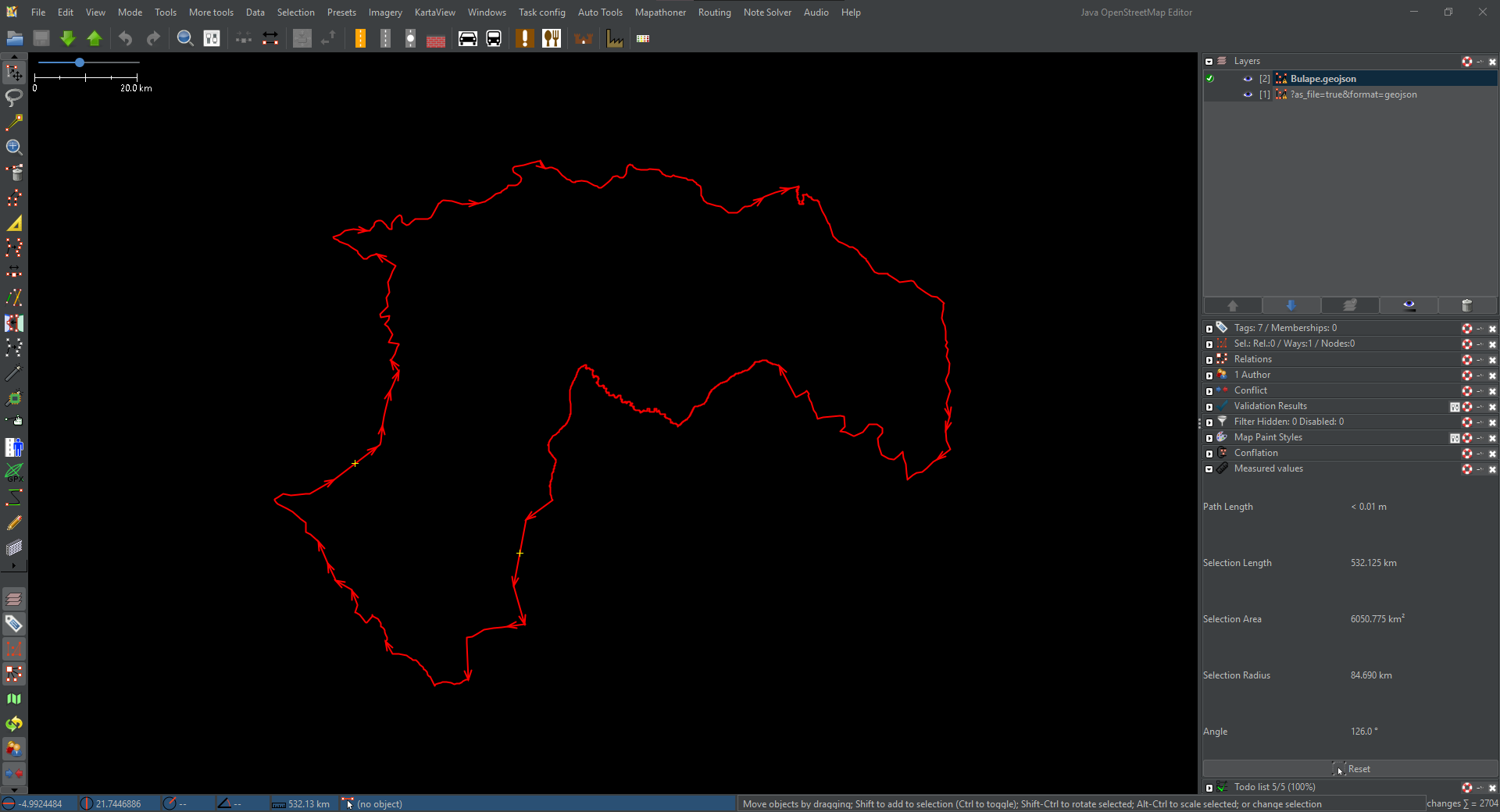 Fig.1. Area of Interest.
Download Along to Highlight the Boundary of the AOI on the Slippy Map
Ralph was first to answer the question. His solution was to download data from OSM using the download along plug-in. The area of downloaded data would then be visible on the slippy map and this could be referenced when drawing a bounding box to download the data. Very clever.
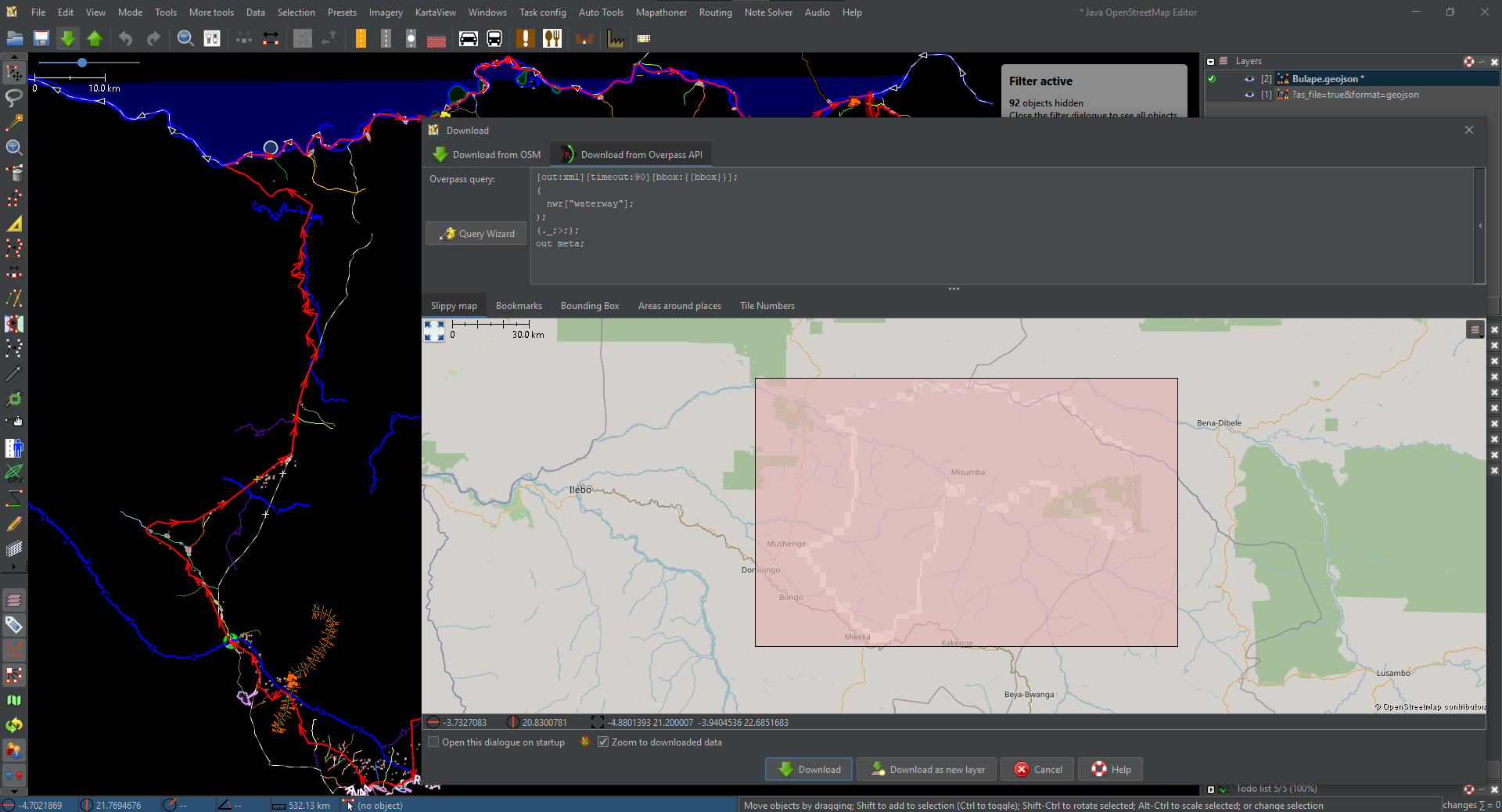 Fig.2. View of Data Downloaded Along AOI (1 m) and Overpass Slippy Map.
This method does work, but there are some drawbacks;
1. You need to download excess data from OSM.
2. You need to wait for the download to complete. This can take several minutes and you cannot use JOSM during that time.  3. You need to be able to spot the highlighted area, which can make choosing the width of download tricky, and some people may find it difficult to see the area.
4. This preliminary download is of all OSM data, so your request is more likely to be rejected. It may not work as well for larger areas or multiple disjointed areas.
3. You need to be able to spot the highlighted area, which can make choosing the width of download tricky, and some people may find it difficult to see the area.
4. This preliminary download is of all OSM data, so your request is more likely to be rejected. It may not work as well for larger areas or multiple disjointed areas.
Create a Bounding Box in JOSM then Obtain the Co-ordinates and use that as the Bounding Box for the Download
An idea popped into my head. Why not just draw the bounding box with a closed way and copy the co-ordinates of the corners? This solution effectively skipped the preliminary download step by just drawing a box with the BuildingsTools plug-in, then selecting the corners of that box, copying their co-ordinates Ctrl+shift+c, removing the redundant ones, and pasting them in the text box(es).
Patrik: ‘I was wondering if there was maybe a way to use the geometry in JOSM to obtain a bounding box?’
The meeting’s already past the hour, and I’m experimenting to see if I can get the method to work. Me:”now we’re cooking.” I share my screen and demonstrate the method.
Patrik: “A dream come true!”
Martien:’I didn’t quite follow the method. You’ll have to show it again next week; for the others in different time zones too.’
Me: ‘I’ll write a diary entry to document it.’ Well… here it is.
Soon after I realised that only the co-ordinates of two opposite corners were necessary to produce a pair of max and min co-ordinates. This simplified the method by removing the compare step. This process effectively did away with all the disadvantages of the first, but it’s still a bit fiddly to get the co-ordinates into the right text boxes.
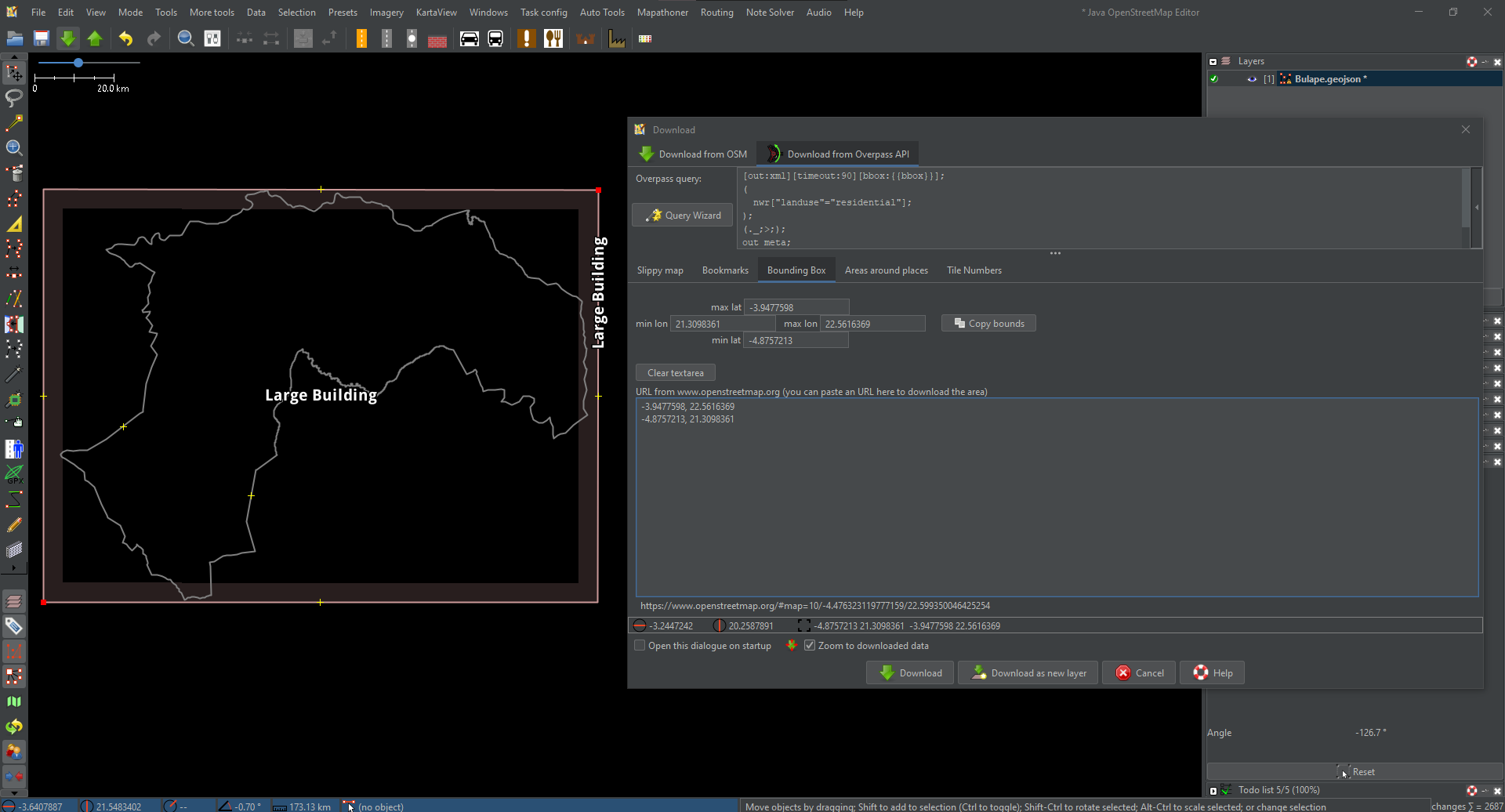 Fig.4. Two node method for acquiring bounding box co-ordinates.
Using the Status Bar to Obtain an OSM Link
In my infinite wisdom I decided to check all the possible options for defining an area of data to download via overpass, and saw that an OSM URL can be supplied for this purpose. Wouldn’t you know it? You can get one of those by simply clicking on the status bar in JOSM (bottom of the screen), then copy and pasting it into the text box when downloading via overpass.
‘Phew! Thank god there’s nothing in here stating how the status bar can be used in concert with download via overpass.’
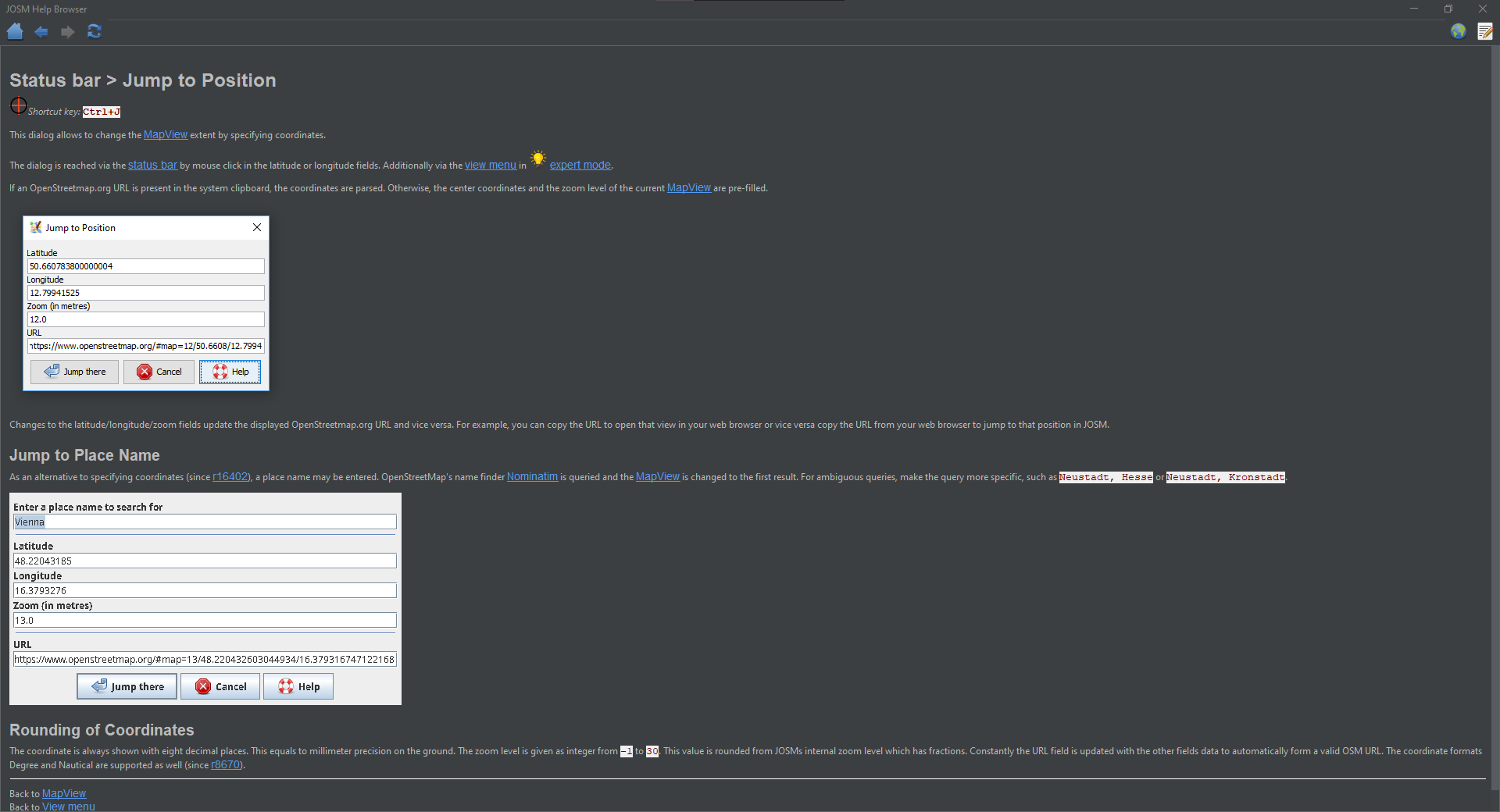 Fig.6. Status bar help browser
Though it wouldn’t be as precise as the co-ordinate method, because JOSM rounds the zoom level of a OSM URL to the nearest whole number. This enhancement further simplified the process and meant that it was no longer necessary to identify which co-ordinates were larger or smaller and paste each one in the correct box.
The Best Bit
While writing this diary entry, it dawned upon me to give this guy a prod, to check if perchance the answer hadn’t been there all along. 
 Fig.8. Area to Download Help Dialogue
It turns out that The JOSM devs have already solved this one and seamlessly integrated it: thank you very much guys!
Your map view is the default bounding box. I already use this concept frequently when downloading OSM Data, I’m not sure why I thought it’d be any different for Overpass. Maybe the various options for choosing an area? Maybe it’s one of those things you use so often and which just works, that you almost forget it’s there?
Zooming to a layer 2, or selection 3 reliably and quickly crops it to be close to the minimum size for the download. This method is even better than using the OSM URL, because it isn’t limited to integer zoom values. The co-ordinate method is technically more precise, but I can’t see much practical use for it at this point. Viewing the slippy map is a good sanity check that you’re in the right place.
If the request is rejected the area must be split up. A full download can be verified using the to do list; select data downloaded areas via overpass do not highlight the slippy map. It may be a good idea to save the data layer(s) you create (especially for more complex downloads). The shrink wrap plug-in could be useful if intending to extract select data from for example a discontinuous project task grid.
Success!
I took a round about path, but got there in the end. This is the result of downloading only residential landuse areas, which took only seconds to complete.
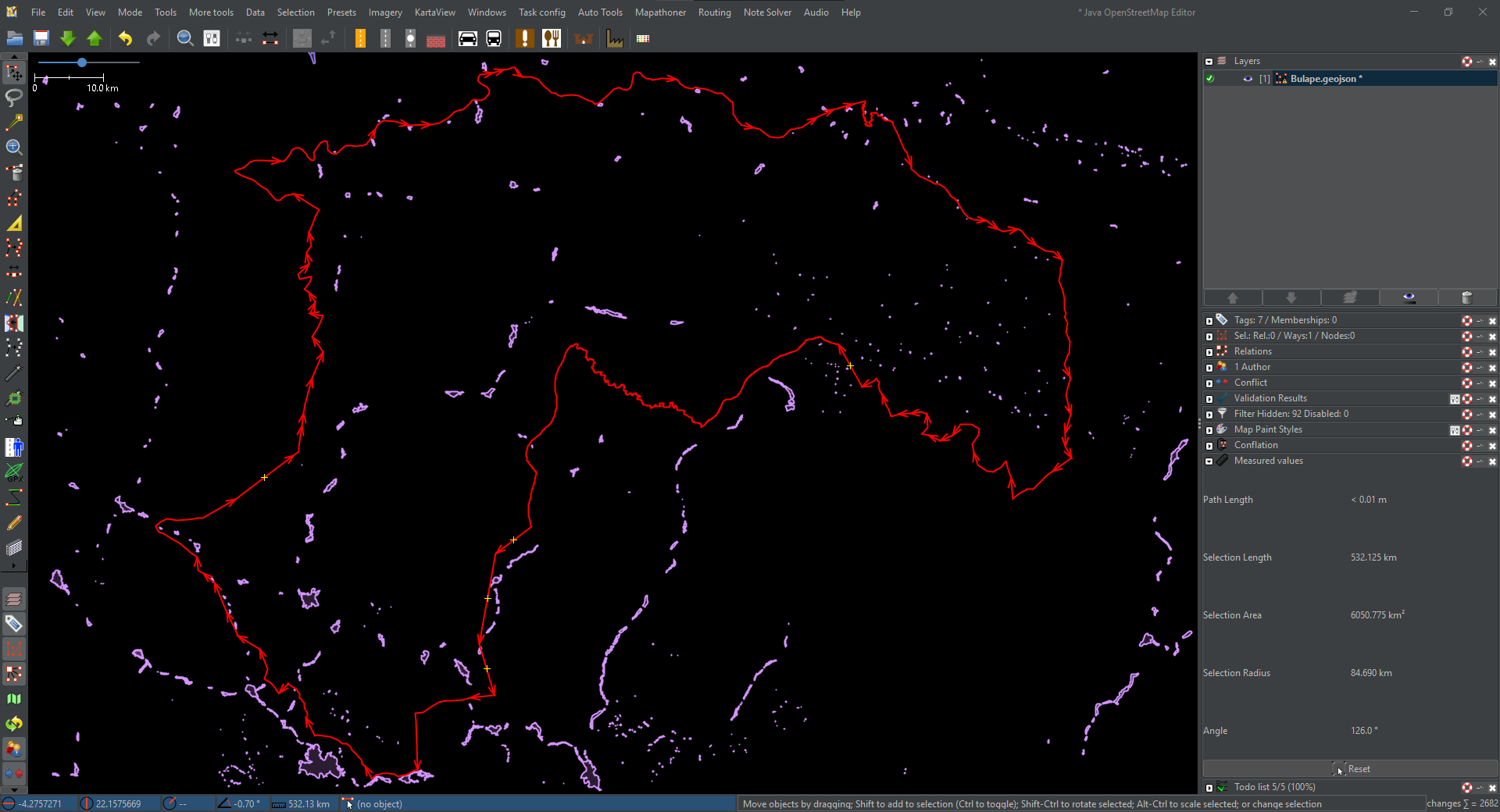 Fig.9. AOI in JOSM zoomed to layer/selection and residential landuse downloaded.
Moral of the story. Take a step back and change your focus. Don’t try to reinvent the wheel; click the button that looks like one first. F1 for a quick pit stop. 🏎️
I’m not sure how Patrik will be able to contain himself when he learns of the great news. 🥳
The download process goes as follows;
- Set up all of your geometries and/or area(s) of interest. Group or split them as necessary.
- Activate the layer containing them.
- Press
2to zoom to the active layer, or3to zoom to the active selection (red). - Click download.
- Double check your query then download the data.
note: It is possible to achieve the objective using all methods described here.





Discussion