 OpenStreetMap

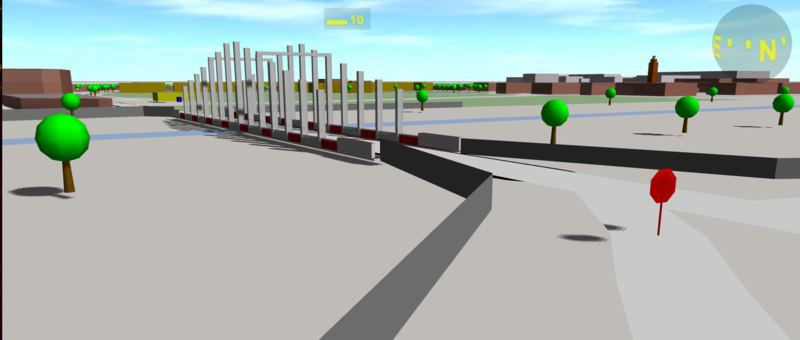
As I wrote last time, “OMS go” will only be used for experiments now. Recently my friend Martin told me about an optimisation, he had done successfully. I implemented it and you may feel remarkable increased control reactions. This is really good if you use the head tracking of Google Cardboard or other stereo devices. To get the best performance, you may need to restart your browser. The 3D interface WebGL is limited and my data handling code is a hack anyway. My new tile handling does have disadvantages: Od shadows ad sunny places. And you can’t select things any more! You may add “&opt=0” to your URL to switch back to the old mode. or switch of shadows by &sha=0
What I did, may only be interesting for codes of 3D renderer:
“OSM go” uses the 3D framework “three.js”. It’s, known as slow, causing bad frame rates. And yes, it does. I am not an expert in 3D hardware and interfaces. But I think there is a bottleneck at the interface to the graphic card. So that problem should also be in OpenGL, Direct-X and WebGL. Sending a package of data (points, three angles, etc. ) from the CPU to the GPU is relatively slow. But the amount of data is not that critically. So you should send less packages with much data. And three.js does the opposite, usually. Each mesh, containing a single geometry with points and faces is send separately to the hardware, again and again in every render cycle.
A three of meshes is a good way to define a complex 3D scene. But an extra mesh is only needed, if you want to change visibility, position and so on. “OSM go” creates an extra mesh for each building, street and stuff. So what? Three.js can merge geometries! After I merged all buildings of a “tile” into one “Multi-Geometry”, the speed increased remarkable. Compare the FPS displayed. You also “feel” now if new OSM data are processed. Moving and spinning gets slow. Just wait or spin a little while and you will “feel” the smooth controls again if it’s over.
It wasn’t a big challenge to implement it. Next to the merges, an array of materials (area-, wall- and roof colors) has to be managed dynamically. The first test was odd: If the zero-point of the geometry went out of screen, the whole multi-geometry got invisible. I assume there is a bounding box, I missed to update after the merges. So it had a size of zero. But who does this invisibility? Three.js or the graphic card? And why are there grey shadows on areas, not placed behind other objects?
I could do some more optimising. May be not in “OSM go” but the next project.
- With “opt=1” you only merge the buildings, streets, landuse etc. Other OSM-Nodes are in an extra mesh for the closer LOD. They don’t take much render time. But you may switch them of by “opt=2”.
- The use of BufferGeometries in three.js may increase the speed to
- I could/should define lower detailed LOD for tiles fare away.
- I should switch off the tiles “behind me”
- There is an idea, how to reenable selecting, while using opt=1
- I hope, OSM download could be done in the background
- OSM tag analysing should be done by a tile server already
- I could change the whole project to WebAssembly 8-I
I did have an ongoing dispute with Martin about storing 3D data in the graphic card and NOT loading the whole OSM objects and unchanged 3D tiles again and again for each render cycle. I only want to move the camera! And it looks like i will win. There are buffers in the GPU, may be not usable with three.js. I also found good hints, I should not deleting the whole render data in each cycle. This looks interessting: https://medium.com/@Zadvorsky/into-vertex-shaders-part-1-the-spaces-of-webgl-c70ded527841
While I experiment with the geometry optimisations, I see much ways to set up a new cyclic code and timing concept, but I will do that in a future project.
One more thing ;-)
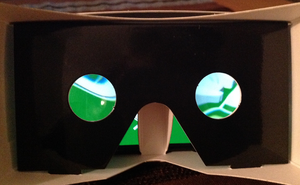
Do you know, “OSM go” offers two control modes: Inspect- and Segway-Mode. Key X switches mode. And if you start it on a smartphone in landscape orientation, you get a direction controls and stereo view, ought to used in a Google Cardboard.
Now you will control the direction, the Segway is driving to. Just turn your head. First you will se your left or right surroundings. Slowly the (virtual) Segway will rotate to. Instinctively you kann turn back your head and still se the new direction. Puzzled by my words? Try it! Or watch that video: https://youtu.be/mBk1pUc4nZE
-karlos-





Discussion